Return window rules: deadlines by country, order tag and more
Return window rules can now match the order, not only the purchase date: shipping country, order tag, order total and more. Give each market its own deadline, straight from the Dashboard.
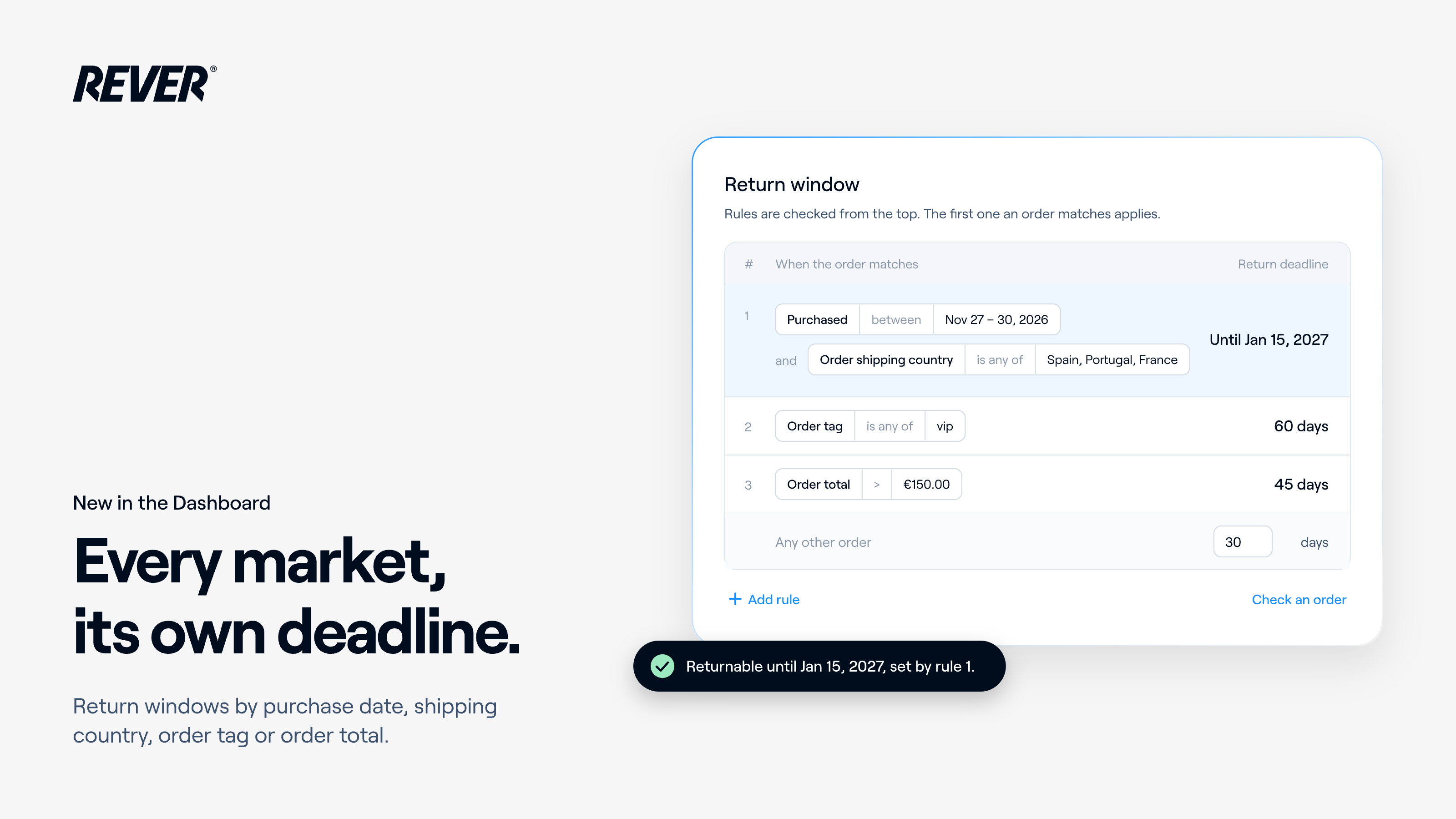
Last week you got return windows by purchase date. Now a rule can also look at the order itself, so one Black Friday window no longer has to cover every market: you pick the countries, save, and it applies right away.
Introducing: Return window rules by country, order tag and more
How does it work?
- Rules on the order: a rule can match the purchase dates, the order, or both. For example, bought November 27 – 30 and shipped to Spain, Portugal or France: returnable until January 15.
- Order conditions: shipping country, order tag, order total, payment gateway, bought in a physical store, paid with buy now pay later, paid with promo codes or gift cards, and products in the order (tag, category, collection or ID).
- The whole order: a rule sets the deadline of every item in the order. One final-sale item in the order gives the whole order that rule's deadline.
- Check an order: replaces “Check a purchase date”. Fill in the purchase date and the order details your rules use, and the page tells you which deadline the order gets, and from which rule.
- A familiar builder: conditions are added the same way as in Requirements and Warehouses.
What should I know?
- First match wins: rules are checked from the top, and you can reorder them. Any other order keeps your usual return window.
- Shipping country means the order's shipping address, not where the return comes from. Orders without one, like in-store purchases, never match “is any of”.
- Date ranges you already saved keep working as they are: nothing to migrate.
- Days count from fulfillment, like your usual return window. A last day includes that whole day.
- If you have “Skip return period” turned on, it still wins: the return window, rules included, is ignored.
When can I use it?
It's available today. You'll find it in your Dashboard under Configuration → Return conditions → Return window.
If you have any questions, just let us know.